
ADD BOOKING TO ANY WEBSITE
Booking widget for your website
One script tag turns any homepage, tariff page, or dedicated booking page into a working reservation system, with live dates, real rates and payment collection built in.
Verified on two live OpenStays customer websites while building this page, screenshots below are unedited.
ILLUSTRATIVE FEATURE OVERVIEW
Website booking
Choose dates
Guests search for their stay
View rooms
Availability and rates in one place
Book directly
Use the embedded OpenStays booking engine
Receive payment
Follow your configured payment workflow
Your website. Direct reservations.
Your website looks good. It just can’t take a booking.
No plugin to install, no developer on retainer and no redirect to a page that looks nothing like the rest of your site. The booking widget for website use is the same OpenStays engine guests already trust, just placed wherever you decide it belongs.
This page walks through exactly how it works, using two real OpenStays customer websites as evidence rather than a mockup, plus a step by step setup guide, an honest comparison against the alternatives and answers to the questions owners ask most often before adding one.
Most independently owned homestays, villas and small hotels already have a website. Someone built it a few years ago, or a nephew who knows WordPress put one together, or a listing tool spat out a page automatically. It has photos, a tariff table, maybe a contact form and a phone number in the header. What it almost never has is a way for a guest to actually check dates and pay.
So the guest who lands on that website, the one who found you through a friend’s recommendation, an Instagram post, or a search for your property by name rather than a generic category, hits a dead end. They either call, which many younger travellers avoid, or they fill out a contact form and wait for a reply that might come tomorrow, or they give up and book the exact same room through an OTA listing a few tabs over, because that page at least lets them pick dates and pay immediately.
None of this is a traffic problem. The guest already arrived at your website, motivated enough to look you up directly instead of browsing a listings page. The problem is narrower and more fixable than it looks: your website has no live availability, no rate calendar and no checkout. A booking widget for website use closes exactly that gap, without asking you to rebuild the site around it.
There is also a quieter version of this problem that is easy to miss because it never generates a complaint. A returning guest, someone who stayed with you last year and wants to come back, will often go straight to your website out of habit rather than search an OTA again. If that website cannot tell them whether their preferred dates are open, the easiest next step for that guest is to open the OTA app they already have installed and book the same room through it, commission and all. You do not lose that guest, you just lose the direct booking, on a guest who needed the least convincing of anyone.
What a missing booking widget actually costs
It is easy to underestimate this because the lost bookings never show up anywhere as a number. A guest who cannot book on your site does not leave an error message, they just leave. Some come back through an OTA and you pay a commission on a guest your own website already earned. Others message a competitor’s listing instead, because that one had a working booking button open in the next tab.
The pattern shows up clearly once you start watching for it: property owners who add a booking widget to their existing website typically see two things shift within the first few weeks. First, a portion of the calls and WhatsApp messages that used to require back and forth on dates and pricing simply stop, because the widget answers those questions itself, at any hour, without anyone typing a reply. Second, a share of bookings that would have gone to an OTA route through the website instead, because guests who already trust your brand enough to visit your site directly will use a booking option that is right there rather than opening a new tab to search for you elsewhere.
Neither of these requires a redesign, new traffic, or a marketing budget. It requires the booking system your website was always missing.
It helps to run the numbers on your own property rather than take that on faith. Take your average nightly rate, multiply it by a typical length of stay and multiply that by the commission percentage your usual OTA charges, commonly somewhere between fifteen and twenty five percent. That figure is roughly what you hand over on a single booking that could have come through your own website instead. Now think about how many of your OTA bookings each month are actually guests who searched for your property by name rather than browsing a category listing, the ones who already knew where they wanted to stay before they opened the app. Those are the bookings a booking widget for website use is built to recover and for most small properties, recovering even a handful of them each month covers the entire effort of adding one many times over.
What a booking widget for website use actually is
Strip away the marketing language and it is one line of HTML: a script tag pointing to OpenStays, carrying a public key unique to your property.
<script src="https://my.openstays.org/sdk/v1.js" data-key="pk_live_YOUR_KEY"></script>That is the entire technical footprint. There is no iframe to size, no container div to style and no separate app to log into. The script renders the booking interface itself, wherever you place the tag, styled to sit cleanly inside your existing page rather than looking like a foreign embed dropped on top of it. Paste it into a homepage hero section and guests see a compact date and guest picker right there. Paste it into a dedicated page and they see the full multi step flow: dates, room selection, guest details and payment.
Everything the widget shows, rates, blocked dates, room availability, comes from the same OpenStays dashboard you already use to manage bookings. Change a rate or block a date there and the widget on your website reflects it immediately, with nothing to copy across manually and nothing that can drift out of sync the way a hand updated tariff table sometimes does. The website itself never needs editing again after the initial setup, only the dashboard does.
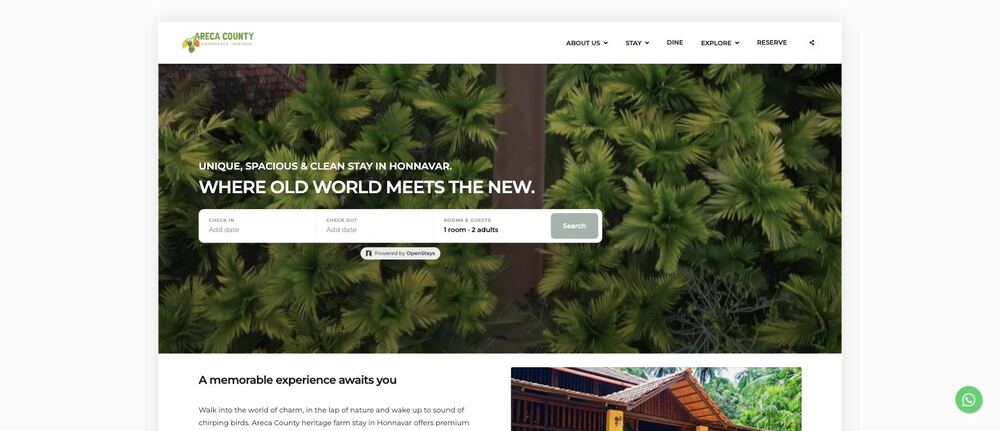
Areca County, a heritage homestay in Honnavar, places the widget directly in its homepage hero. Guests pick dates before they have scrolled past the first section.
Two ways to place a booking widget for website use
Because the embed is a single script tag, where you put it is entirely your decision. Two patterns show up repeatedly on real OpenStays customer websites and each solves a slightly different problem.
The homepage hero widget
A compact check in, check out and guest count field sits inside the existing hero banner, usually with a small Powered by OpenStays badge beneath it. Guests searching dates are one click from checkout without ever leaving the homepage. This is the right choice when most of your traffic lands on the homepage first and you want booking to feel like a natural part of the page, not a separate destination.
The dedicated booking page
A standalone page, often linked from the main navigation as Book Online or Reserve, shows the complete flow: a live per night rate calendar, room selection, guest details and payment, laid out with room to breathe. This is the right choice when you want a clean, focused checkout experience and a single link you can share directly in WhatsApp, email, or social bios.
Many properties use both. The homepage hero captures guests who are still deciding and the dedicated page becomes the canonical link shared everywhere else, since it is easier to point to a full page than a section halfway down the homepage.
SEE IT IN ACTION
Two real OpenStays websites, two different setups
These are live customer websites, not mockups. Screenshots were captured directly from each site while researching this page.
Areca County, honnavar
Areca County is a heritage farm stay near Honnavar on Karnataka’s coast, built around a restored traditional home with rooms priced from roughly three and a half thousand rupees a night. Its website runs on WordPress and the booking widget appears in two places at once: a compact search bar sits in the homepage hero, right under the tagline and a full booking flow lives on a dedicated Reservation page linked from the main navigation as Reserve.
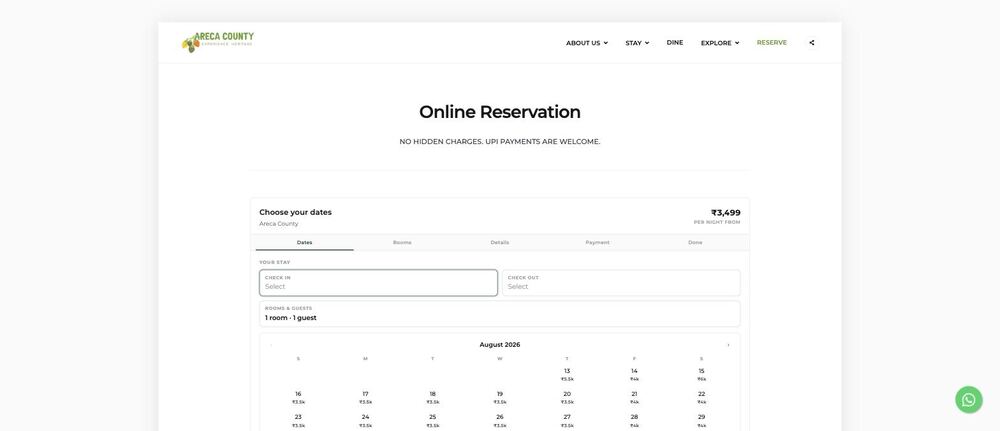
Areca County’s Reservation page: a live per night calendar with prices shown on each date, followed by room selection, guest details and payment. No hidden charges, UPI accepted, stated plainly above the calendar.
A guest who clicks Reserve in the navigation lands on this page, picks dates from a calendar that already shows the rate for each night and moves through room and guest details to payment, all without leaving arecacounty.com or being handed off to a third party checkout page that looks unrelated to the site they were just browsing. The calendar itself does the work a phone call used to do, showing at a glance which nights are open and what each one costs, including the higher weekend rate visible on Friday and Saturday dates in the screenshot above.
What is easy to miss from the outside is how little of the surrounding site had to change to make this possible. Areca County’s homepage, About page and dining and exploration pages all keep their original design and content. Only the hero section and the new Reservation page carry the widget, dropped into an existing WordPress layout the same way a contact form or a Google Map embed would be.
Hill view villa, Mysore
Hill View Villa is a homestay in Mysore with rooms from around seven thousand rupees a night and its website is not built on WordPress, which matters for one specific reason: it proves the widget is not tied to any single platform. The same script tag renders correctly on a WordPress site like Areca County’s and on Hill View Villa’s differently built site without modification, which is the clearest evidence available that this is not a WordPress plugin wearing a general description.
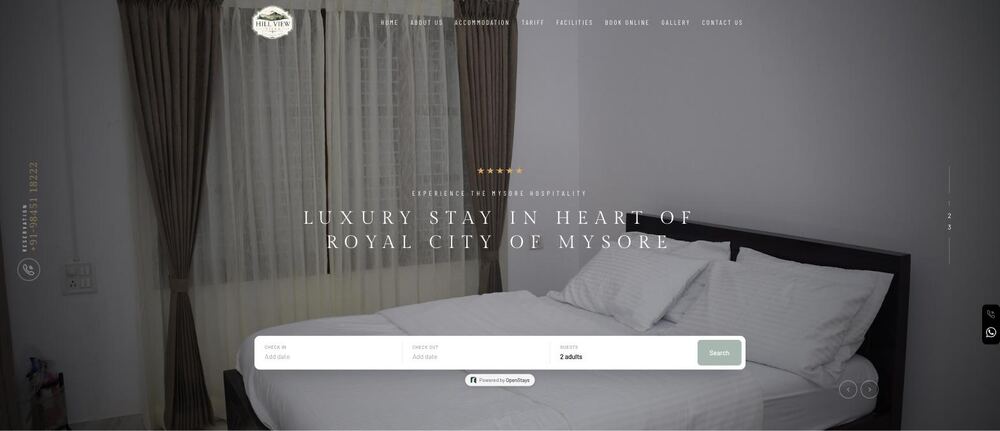
Hill View Villa’s homepage hero includes a compact Check In, Check Out and Guests search bar directly over the room photo, with a Powered by OpenStays badge beneath it.
Hill View Villa also maintains a dedicated Book Online page in its navigation, reached the same way Areca County’s Reservation page is, showing the identical multi step flow: Dates, Rooms, Details, Payment and a final confirmation step, each shown as a labelled tab across the top of the booking card.
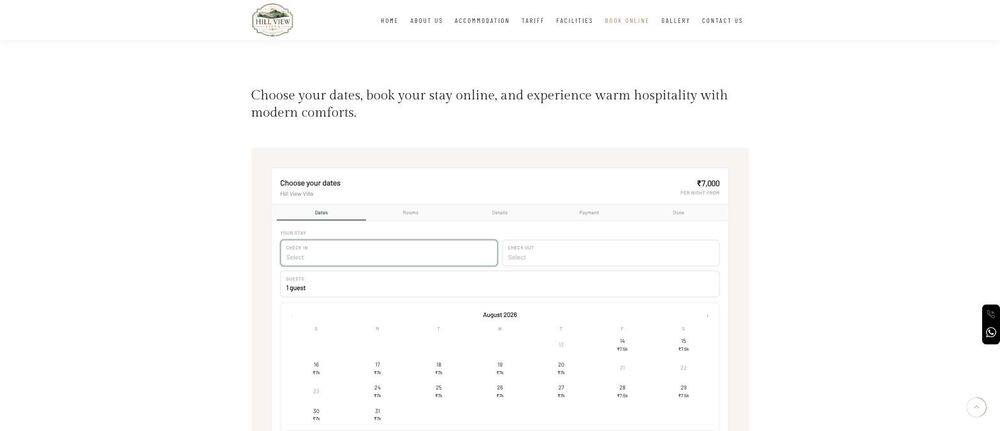
The full booking flow on Hill View Villa’s Book Online page. Same underlying widget as Areca County’s, same steps, different site design around it.
Both properties are independently owned, run different website builders, priced their rooms differently and made different placement decisions about where the widget should live. Neither required custom development to get there, just the script tag and a decision about which page it belonged on. That is worth sitting with for a moment: two owners, two unrelated web developers, two different platforms and the same one line embed dropped into each without incident.
What a guest actually experiences, start to finish
It helps to walk through the flow the way a guest does, rather than the way an owner sets it up, since the two experiences are entirely separate. A guest arrives at your homepage from a search, a saved bookmark, or a link a friend sent. If the widget sits in the hero, they see a check in and check out field immediately, without hunting for a Book Now button buried in a menu.
They pick their dates and the calendar shows availability and rate for each night as they browse, the same live information your OpenStays dashboard holds. If they are on a dedicated booking page instead of the homepage hero, the flow expands into clearer steps, dates first, then room type, then their own details, then payment, each shown as its own tab so the guest always knows how much is left before they are done.
Payment happens inside that same flow, without a redirect to an unfamiliar domain that might make a cautious guest hesitate. UPI, the payment method most Indian travellers reach for first, is supported directly, alongside card payments for guests who prefer that route. Once payment clears, the guest sees a confirmation immediately, the same moment the booking appears on your dashboard and blocks those dates everywhere your calendar is synced. No hold period, no waiting for a callback, no uncertainty about whether the room is actually theirs.
A booking widget for website use, on any website
The two examples above are not a coincidence. Because the embed is a single, self contained script tag rather than a plugin or a framework specific component, it does not care what your website is built on. It works the same way whether your site runs on WordPress, Wix, Squarespace, Webflow, a page builder that came bundled with your hosting, or a site someone hand coded years ago and nobody has touched since.
If your website platform lets you paste a snippet of HTML anywhere, whether that is a widget area, a custom code block, a theme file, or a page builder’s embed element, you can add the booking widget there. There is no build step, no npm install and nothing that needs a developer’s laptop to set up. If you can edit the page at all, you can add this to it.
What that looks like differs slightly by platform, though the underlying step is always the same one: find where your builder lets you drop raw HTML and paste the script tag there.
WordPress
Add a Custom HTML block anywhere in the Gutenberg editor, or paste the tag into a widget area through Appearance, Widgets, if your theme supports widget areas in the header or hero. Most booking themes also expose a dedicated header or hero HTML field in their customizer settings.
Wix
Use the Embed a Widget or HTML iframe element from the Add panel, then choose Enter Code and paste the script tag. Wix renders it inside its own contained frame, which keeps the placement predictable across the editor and the published site.
Squarespace
Add a Code Block from the Insert menu on the page you want the widget to appear on, switch it to HTML and paste the tag. Squarespace’s Code Injection settings under Advanced can also be used for site wide placement, such as inside every page’s header.
Webflow
Drag an Embed element onto the canvas from the Add panel and paste the script tag into its code field. Webflow keeps the embed isolated from the rest of the page’s custom code, which avoids conflicts with animations or interactions elsewhere on the site.
Sites built without a page builder, whether hand coded, generated by an older tool, or maintained by a freelance developer, only need the tag pasted directly into the page’s HTML wherever the hero section or a new page’s body content lives. There is nothing platform specific about the tag itself, only about where each builder lets you paste raw HTML.
Booking widget for website vs. Everything else your site could be doing
| Approach | What the guest sees | Where the booking happens |
|---|---|---|
| Booking widget on your site | Live dates, real rates, checkout, all on your own domain | Instantly, on your website |
| Contact form | A form to fill in and wait for a reply | Hours or days later, over email or phone |
| Phone number only | A number to call during business hours | Only if they call and only if you answer |
| WhatsApp button only | A chat opens, guest still has to ask about dates and rates | After a back and forth conversation |
| Standalone booking link, no site embed | A separate page, often on a different looking domain | On that separate page, not your website |
| OTA listing only | Dates and checkout, but on the OTAs page and rules | On the OTA, with commission owed |
The widget is not a replacement for any of these, a phone number and a WhatsApp button are still worth keeping. It is what turns your website itself from a brochure into a channel that can actually close a booking, which is the one thing none of the alternatives above do on your own site.
The comparison also clarifies a question owners often ask backwards: whether to invest effort in the website at all when OTAs already bring bookings. The website is not competing with the OTA channel, it is recovering a channel you already paid to build, through design, hosting and content, but never finished by adding a way to actually book. Every other row in the table above still routes a guest away from that investment, back to a phone call, a wait, or someone else’s platform.
SETUP
How to set up a booking widget for website use
Adding the OpenStays booking widget to an existing website takes one script tag and a few minutes, regardless of what platform the site is built on.
1. Get your public key
Sign in to your OpenStays dashboard and copy your property’s public key from the Website Embed section. This key is safe to place in public HTML, it only identifies which property’s availability and rates to show.
2. Copy the script tag
OpenStays gives you one line: a script tag pointing to the OpenStays SDK with your key already filled in. Copy it exactly as shown.
3. Decide where it goes
Paste the tag into your homepage hero section for a compact search bar, or onto its own page (often linked as Book Online or Reserve) for the full booking flow. Most website builders and WordPress themes have a custom HTML or code block for exactly this.
4. Publish and test
Save your changes, open the page in a private browser window and run through a test booking with a real date range to confirm rates and availability are showing correctly.
5. Link to it from your navigation
If you placed the widget on a dedicated page, add it to your main menu so guests can find it in one click from anywhere on the site.
Five ways properties get less out of their booking widget than they could
- Burying it below the fold. A widget placed at the very bottom of a long homepage, under photo galleries and amenity lists, gets far less use than one visible without scrolling. Guests decide within seconds whether a site can help them book and a widget they never see might as well not exist.
- Never linking to the dedicated page. If you built a full booking page, put it in the main navigation. A booking page with no link pointing to it only gets found by guests who already know the exact URL, which defeats the purpose of building it.
- Leaving old contact forms as the only visible option. If a contact form still sits above or beside the widget with equal visual weight, some guests will default to the form out of habit and wait for a reply instead of booking immediately.
- Not testing on a phone before publishing. A layout that looks perfect on a desktop monitor can crowd or overlap on a small screen and most guests will encounter the widget on mobile first. Always run a full test booking on a phone before considering the setup finished.
- Forgetting to mention it anywhere else. A widget your regular guests do not know exists will not get used by them. Mentioning it once in a WhatsApp broadcast, an email signature, or an Instagram bio link is often enough to shift a meaningful share of repeat bookings toward it.
How to evaluate any booking widget for website use, not just this one
If you are comparing OpenStays to another option, or simply deciding whether embedding a widget is worth the effort at all, a few questions cut through most of the marketing copy on any vendor’s page, including this one. Ask a vendor these questions directly and pay attention to how specific the answer is, a vague answer to a specific question is usually the answer itself.
- Does it work on your specific website platform, or only on one (usually WordPress)? Ask to see it running on a site built the way yours is, not just a demo.
- Is the embed one script tag, or does it require an iframe, a plugin install and ongoing maintenance every time your theme updates?
- Can guests pay directly through the widget, or does it just collect a request that still needs a phone call to confirm?
- Is pricing and availability genuinely live, pulling from the same calendar you manage, or is it a separate system you have to update twice?
- What happens on mobile? Test the actual checkout flow on a phone before deciding, since that is where most guests will encounter it.
A setup that answers all five well is worth adopting regardless of which company built it. One that struggles on two or three of these is asking you to do maintenance work in exchange for a booking button, which usually is not a good trade. It is also worth asking to see the checklist answered on a real, published website rather than a demo environment built to look good in a sales call, since a demo can hide exactly the friction a real guest would run into.
What actually happens when a guest pays through the widget
It is a fair question to ask before putting any payment flow on your website: where does the guest’s card or UPI information actually go? The answer is that it never touches your website’s server at all. The script tag only renders the interface and talks directly to OpenStays over an encrypted connection, the same way a guest’s browser talks directly to a bank’s servers when completing any online payment. Your website’s hosting, database and files are never in the payment path, which also means a security issue with your web host or theme has no bearing on payment safety.
The public key visible in the script tag identifies which property’s rates and availability to display, it does not grant access to your OpenStays account, your bookings, or your payout settings. It is called a public key because it is meant to be visible in your page’s source code, the same way a Google Analytics tracking ID or a Google Maps API key is visible on countless websites without being a security risk.
QUESTIONS
Booking widget for website, frequently asked questions
Do I need to know how to code to add a booking widget for website use?
No. Adding the widget means pasting one script tag into a custom HTML or code block, something every major website builder and WordPress theme supports without any programming knowledge. If you have ever added a Google Analytics tag or an embedded YouTube video to your site, the process is nearly identical.
Will the booking widget work with my existing website builder?
Yes. The embed is a standard script tag with no platform specific dependencies, so it works on WordPress, Wix, Squarespace, Webflow and hand coded sites alike. Both real examples on this page prove this directly: Areca County runs on WordPress and Hill View Villa does not and the same widget renders correctly on each.
Where should I place the widget, my homepage or a separate page?
Either works and many properties use both. A homepage hero placement catches guests while they are still browsing. A dedicated page gives you a clean, shareable booking link for WhatsApp, email signatures and social media bios. If you can only do one, start with whichever page gets more direct traffic.
Does adding the booking widget slow down my website?
The script loads asynchronously and is small compared to typical page assets like photos, so the impact on load time is minimal for most sites. As with any third party script, it is worth testing your page speed before and after adding it if performance is a concern.
Can guests actually pay through the widget, or does it just send a request?
Guests complete payment directly within the widget’s checkout flow, the same one shown in the screenshots on this page. There is no separate step where a request sits waiting for manual confirmation.
Is the widget mobile friendly?
Yes. Both example properties on this page receive the majority of their direct traffic on mobile and the widget’s checkout flow is built to work on a phone screen without pinching or zooming.
Can I customize how the widget looks to match my site?
The widget is designed to sit cleanly inside most site layouts by default. For deeper visual customization beyond the standard appearance, reach out to the OpenStays team with your specific requirements.
I already share a standalone OpenStays booking link. Can I add the widget to my website too?
Yes and it is worth doing. A standalone link works well in places like a WhatsApp bio or an Instagram link in bio, but it sends guests to a page separate from your own website. Embedding the widget directly keeps guests who are already on your site there through checkout, instead of handing them off elsewhere.
Is there a separate cost to embed a booking widget for website use?
The booking widget is part of the same OpenStays booking engine covered under your regular plan. See the direct booking engine overview and current plans for details.
Does the widget replace my listings on OTAs like Booking.com or MakeMyTrip?
No and it is not meant to. OTAs remain a genuine discovery channel for guests who do not already know your property. The widget exists for the guests who do, the ones who find your website directly and deserve a way to book without a commission neither of you needed to pay.
If I update my rates or block a date, do I need to change my website too?
No. The widget always pulls live from your OpenStays dashboard, so a rate change or a blocked date shows up on your website the moment you save it there. The website itself only needs to be touched again if you decide to move the widget to a different page.
Will adding a third party script hurt my page’s SEO or search rankings?
A single lightweight, asynchronously loaded script like this one has a negligible effect on search rankings for most sites. What tends to help rankings instead is exactly what this widget adds: a clear way for visitors to complete an action on your page, which search engines generally read as a sign of a useful, functional website.
What if I don’t have any technical staff to help set this up?
Most owners set this up themselves without help. Pasting a script tag into a website builder’s HTML or code block is a copy and paste task, not a development project and the steps are the same five described in the setup section above regardless of how the rest of your site was built. If you get stuck at any step, the OpenStays team can walk you through it directly.
What to expect in the first month
The week you add the widget, almost nothing changes visibly, your website looks the same aside from a new search bar or a new page in the menu. The shift happens in the messages you stop having to send. Guests who used to message asking whether a weekend is free now check the calendar themselves. Guests who used to ask for a payment link now get one automatically as part of checkout.
By the second or third week, a pattern usually becomes visible in your booking source: a share of reservations that would have gone through an OTA or a long WhatsApp back and forth start coming through the widget instead, from guests who found your website directly. Repeat guests tend to notice first, since they are the ones most likely to type your property’s name straight into a browser rather than search a listings app and they are usually the first to use the widget rather than message you the way they always have.
None of this requires you to change how you market the property, only to give the guests who already found you a way to finish what they started. The website you already built and the guests already finding it, do the rest.
It is also worth checking your booking source data again after the first full month, not just the first week. Guest behaviour around booking channels tends to shift gradually rather than overnight, since it depends partly on guests noticing the new option exists and partly on repeat guests forming a new habit around where they book. A property that sees a modest shift in week one often sees a larger one by week four, once the widget has had time to become the obvious choice rather than a new addition guests have not yet registered.
Related reading
A booking widget for website use is one piece of a larger direct booking setup. These related pages cover the parts that sit alongside it:
Direct booking engine
A broader look at the booking engine itself, including the standalone booking link you can share anywhere, with or without embedding it on a website. See the direct booking engine overview.
Homestay booking platform
How the full OpenStays platform fits together for homestay owners, from calendar management to guest messaging. See the homestay booking platform overview.
iCal calendar sync
How OpenStays keeps your calendar in sync with OTAs like Booking.com and Airbnb, so a booking through the widget automatically blocks the same dates everywhere else. See iCal calendar sync.
0% UPI payment gateway
How guests pay through the widget without card processing fees eating into what you keep. See the UPI payment gateway details.
Give your website a way to take the booking.
One script tag, live on your homepage or its own page, working on whatever platform your site already runs on.